Team management in the Account area
Last updated: August 2026 Audience: Admins, team admins, and members who accept invitations or need to understand team settings.
Beta: https://account-preview.liman.com → Team
General profile and subscription topics: Account settings and profile.
Create or join an organization: Self-registration.
Roles in the organization
| Role | Typical permissions |
|---|---|
| Admin | Full team and org settings, manage members, subscription (per policy) |
| Team Admin | Same as admin where the policy allows |
| Member | Use the main app; no team management (unless invite is allowed) |
After self-registration you are Team Admin of your new organization. Via invitation you get the role chosen in the invite.
Members & invitations
Where: Account → Team.
Member list
Table with display name, email, and role. Admins/team admins can:
- Change role (Member / Team Admin / Admin)
- Remove from team (with confirmation)
Invite user
- Click Invite user.
- Enter email and role.
- Liman sends an invitation email with link (
/signup/join?invitation=…).
The invitee sets name, login, and password, then confirms email — see Accept invitation.
Pending invitations
Not yet accepted invitations appear under Pending invitations. You can cancel invitation.
Rename organization
Where: Account → Team → Organization section.
Edit and save the display name. Internal slug may differ — use a slightly different spelling if there is a conflict.
Policy (who can invite / manage subscription)
Where: Account → Team → Policy.
| Setting | Values | Meaning |
|---|---|---|
| Can invite | Admin / Team Admin | Who may invite new members |
| Can manage subscription | Admin / Team Admin | Who may Buy subscription and Manage subscription (Stripe) |
Default is often Team Admin for both — your operator may differ.
Quotas & visibility
Where: Account → Team → Quotas & visibility.
| Setting | Description |
|---|---|
| Max members | Upper limit including pending invitations. Defaults depend on plan (Free/Pro) |
| Storage limit (MB) | Nextcloud/WebDAV quota for the organization |
| Monthly AI token quota | Cap for platform AI per calendar month (UTC): assistant, transcript summary, translation via IONOS/OVH. Org BYOK (third-party keys under AI models) does not count here |
| Hide public Matrix rooms | Hide Join team in the Matrix room list |
| Org members only in Matrix people search | Restrict people search to your organization |
Save with Save quotas.
Security policies
Where: Account → Team → Security policies.
Controls whether Matrix end-to-end encryption is used at all for the organization, and — if enabled — device verification and recovery key handling:
Matrix end-to-end encryption
This is an admin policy (not a per-user toggle in app Settings). When the policy is off, members do not see encryption hints in unencrypted chats.
Default: off. New organizations and hosted Liman Matrix start without E2EE.
Exception: Choosing an existing Synapse or Tuwunel server under Services (“Own server”) turns encryption on (same in the setup wizard), because those homeservers often already have encrypted rooms. The admin can still switch the toggle back to Off.
| Setting | Behavior |
|---|---|
| Off (default) | Clients skip crypto initialization; new encrypted rooms cannot be created; E2EE options in the app (create room, Security settings, meeting “Start encrypted”, etc.) are hidden |
| On | Members can use encrypted rooms; crypto is set up on login |
Existing already-encrypted rooms may remain partially readable depending on local keys; the organization deliberately opts for unencrypted Matrix communication.
Decision guide (tradeoffs): When E2EE makes sense, how it affects AI/MCP/recording, and admin scenarios — see End-to-end encryption → Decision guide.
Device verification
Only relevant when Matrix E2EE is enabled:
| Policy | Behavior |
|---|---|
| Comfortable (automatic) | New devices verified automatically; recovery key stored securely on server |
| Strict (manual verification) | Each new device verified manually via SAS/QR or recovery key; key not stored on server |
For end users: End-to-end encryption (including decision guide).
Meeting options (Town Hall & Webinar)
Where: Account → Team → Meeting options.
| Status | Meaning |
|---|---|
| Inactive | Town Hall and Webinar not selectable when creating events |
| Pro required | Buy Pro subscription and webinar add-on on the overview page |
| Active | Both formats enabled for the organization |
Note: One organization flag enables both formats together. Format details: Event and meeting options, Webinar registration.
Recording, transcription & AI (compliance)
Where: Account → Team → Recording, transcription & AI.
Organization-wide meeting rules:
| Area | Options (summary) |
|---|---|
| Recording | Allow; optional explicit participant consent |
| Transcription | Allow; optional consent requirement |
| Legal notice | HTTPS link to privacy/explanation |
| AI on transcripts | Internal (platform) and/or external provider — titles, disclaimer texts, optional privacy URL |
Hosts can only enable what is allowed here. Consent dialogs in meetings follow these settings.
Save: Save compliance settings.
AI models
Where: Account → Team → AI models section (#ai-models), just before AI usage.
Admin / team admin only. Choose which language models your team may use in Liman. Members pick only from this list; personal API keys in app settings are gone.
| Setting | Meaning |
|---|---|
| Allowlist (IONOS / OVH) | Enable or disable platform models for your plan. With no saved list, all platform models of the plan apply. |
| Third-party providers | OpenAI, Anthropic, Azure, Gemini, … only with an org API key (write-only, never shown again). Without a key the provider does not appear in the app. |
| Default model | Used when a member has no personal choice yet, or their previous model is no longer allowed. |
| IONOS contract number | Optional, if you have several IONOS contracts (fixes “invalid issuer”). |
Save with Save models. Team admins can also open this section from the main app (Settings → AI Agent → Open team AI models).
IONOS and OVH keys stay platform credentials of the operator (not stored as org keys). Third-party org BYOK usage is billed by the provider and does not count against the monthly AI quota.
AI usage & quota
Where: Account → Team → AI usage section (#ai-usage).
📸 Screenshot:
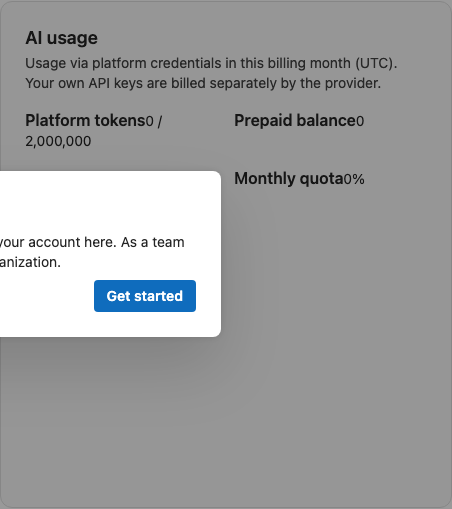
Shows consumption via platform credentials (IONOS/OVH) in the current billing month (UTC). Org BYOK (third-party keys under AI models) is billed by the provider and appears in the BYOK bucket, not the platform pool.
Metrics
| Display | Meaning |
|---|---|
| Platform tokens | Tokens used this month |
| Prepaid balance | Remaining tokens from purchased prepaid packs |
| Requests | Total AI requests |
| Monthly quota | Configured cap (see Quotas & visibility) |
| Period | Current billing month (UTC) |
| By feature | Breakdown: Assistant, transcript summary, translation, agent bot, other |
Actions (admin / team admin)
| Action | Description |
|---|---|
| Export CSV | Download usage for reporting |
| Buy prepaid packs | Additional tokens via Stripe (buttons with token amount); balance available immediately after purchase |
Warning banner
From about 80% of the monthly quota, a warning appears in the account area for admins/team admins. When quota is exhausted, users see a recovery dialog in the main app (prepaid, configure team AI models for team admins, contact team admin).
Technical reference (Vistameet-Teams): Operator admin stats at /ai-usage; server logic in server/lib/ai-usage-*.ts.
Services for your team
Where: Account → Team → Services for your team.
Defaults for all team members on first use in Liman:
Matrix access
| Mode | Description |
|---|---|
| Standard (OIDC) | Matrix sign-in via Keycloak/SSO (recommended) |
| Own server (Legacy Synapse) | Fixed homeserver URL; members sign in with Synapse password (legacy Matrix) |
Step-by-step including device verification with Element: Connect your Matrix server.
Cisco Jabber
Optional click-to-IM and click-to-call: Liman opens the installed Jabber client from People / Contacts (chat stays outside Liman).
| Setting | Meaning |
|---|---|
| Enable Jabber deep links | Show actions on contacts (default: off) |
| ciscotel: / IM domain / email heuristic | See Cisco Jabber |
Calendar source
Default calendar provider for new users, e.g. Microsoft 365, Scheduler (internal), Nextcloud, Open-Xchange.
Mail account required for Nextcloud/Open-Xchange: When enabled, users must configure a mail account for those providers (e.g. for invites).
More on providers: Data backends.
Deletion & reassignment
- Account and organization deletion with target date: only under Settings — see Delete account.
- Reassign account to another team (admin only): in preparation — shown as a note on the Team page.
See also
- Account settings and profile – subscription, profile, password, email
- Self-registration – registration and accepting invitations
- Webinar registration – manage under Account → Webinars
- Event and meeting options – Town Hall, Webinar, participant limits
- Cisco Jabber – click-to-IM / click-to-call