Connect your Matrix server and verify Liman
Updated: August 2026
This guide shows how to connect your own Matrix homeserver to Liman and verify the Liman session as a client (device verification with Element).
Sprache / Language: Deutsch
Short film (about 1 minute, German voiceover)
Which path do I need?
| Goal | Where | Who |
|---|---|---|
| Org homeserver (Legacy Synapse) for the whole team | Account → Team → Services | Team admins |
Additional Matrix account (e.g. matrix.org or another server) | Liman → Settings → Accounts | Any user |
| Verify the Liman device with Element | Liman → Settings → Security | Users with an existing Element device |
The recommended default for Liman organizations is Matrix via OIDC/SSO (Keycloak). “Own server (Legacy Synapse)” and external Matrix accounts are special cases for existing homeservers or extra identities.
Background on encryption and recovery keys: End-to-end encryption. Admin overview: Team management.
Part A — Org homeserver (Legacy Synapse)
Use this when every team member should use the same existing Synapse with username/password (not the standard OIDC flow).
Prerequisites
- You are a team admin in the Account area (account-preview.liman.com during beta).
- The homeserver URL is reachable over HTTPS, e.g.
https://matrix.example.com. - Members know their Matrix credentials on that server.
- The homeserver allows login from the Liman client (CORS / Client API).
Steps (admin)
- Open the Account area → Team.
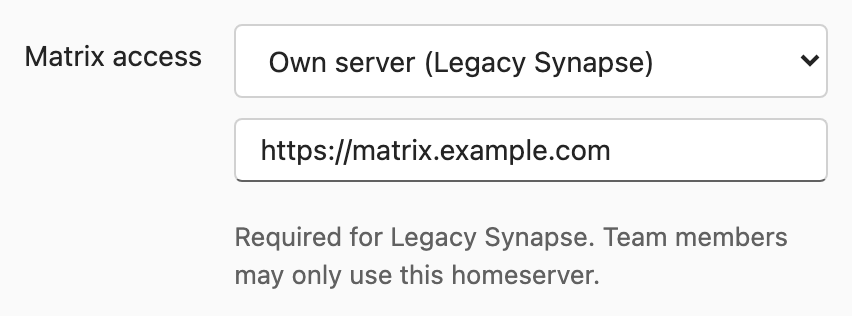
- Scroll to Services for your team → Matrix access.
- Choose Own server (Legacy Synapse).
- Enter the server address (e.g.
https://matrix.example.com) and save.
Liman then treats the homeserver as an existing server: Matrix E2EE is turned on for the organization (existing encrypted rooms). You can turn it off again under Security policies if needed.
📸 Screenshot:
Steps (members after the switch)
- Sign in to Liman as usual (SSO/Keycloak).
- The dialog Connect Matrix (Synapse) appears with the configured homeserver URL.
- Enter Matrix username and Matrix password → Connect.
- Liman then syncs rooms and messages from that homeserver.
Part B — Add another Matrix account (any homeserver)
Use this when you want an account on another homeserver in addition to the organization account (e.g. matrix.org or a private server).
Steps
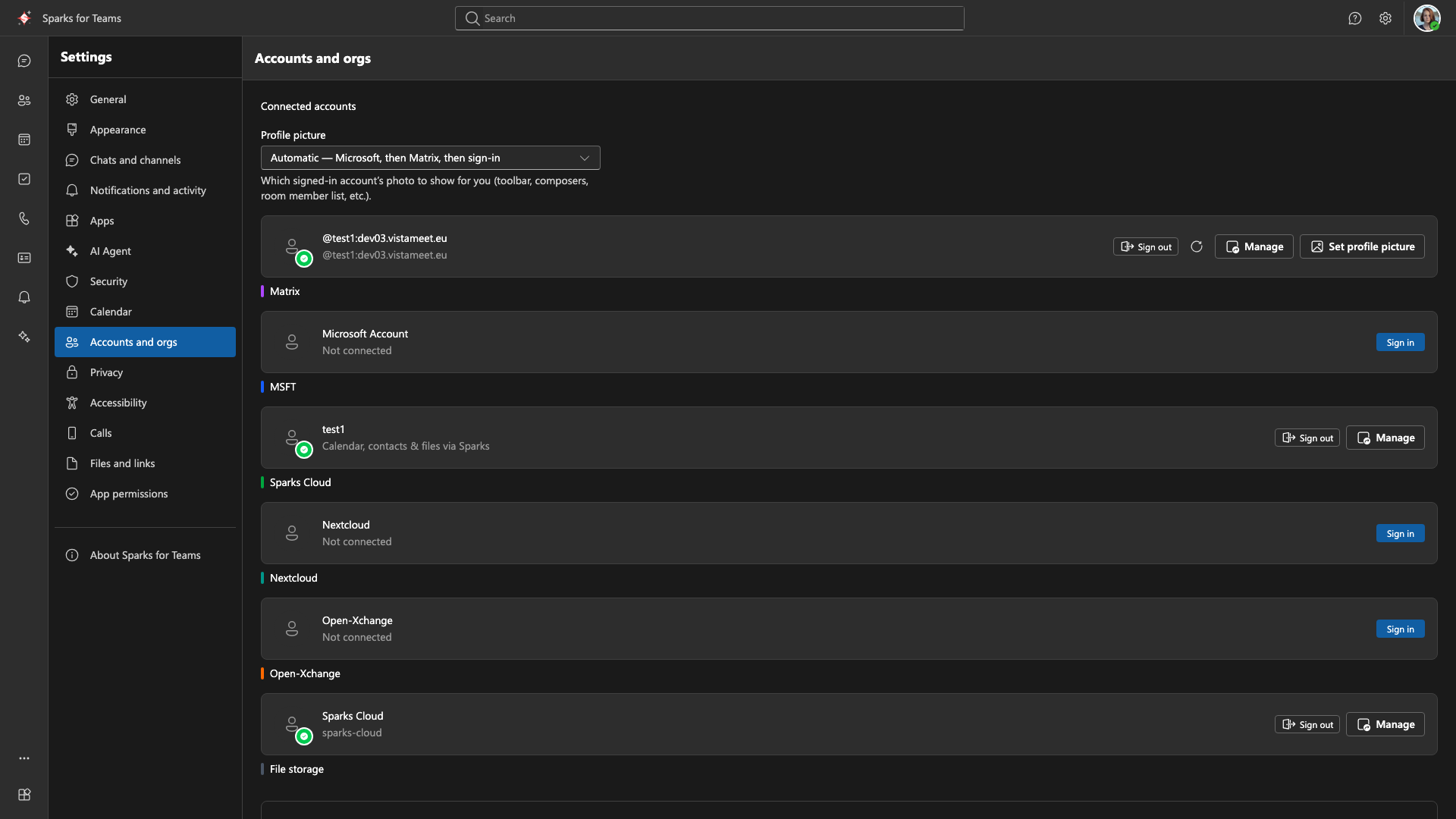
- In Liman open Settings (Ctrl+. / Cmd+.) → Accounts tab.
- On the Matrix card, click Manage.
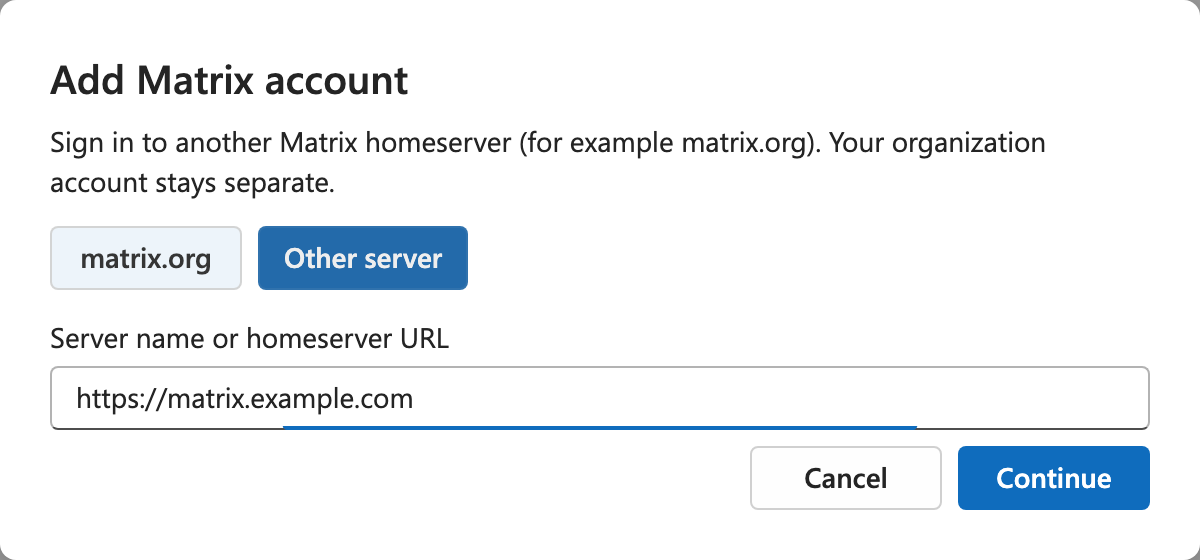
- Choose Add Matrix account.
- Enter server name or homeserver URL (preset:
matrix.org) → Continue.
Liman discovers the homeserver via.well-known. - Sign in with password and/or SSO.
📸 Screenshot:
📸 Screenshot:
The new account is marked External. You can switch between org and external accounts. Recovery keys for external accounts stay on-device and are not uploaded to Liman.
Part C — Verify Liman as a client with Element
So encrypted chats stay readable and trusted across devices, verify the new Liman session against an already verified device (typically Element).
Prerequisites
- Matrix E2EE is enabled for your organization (Security policies).
- You are signed into Liman with the same Matrix account as in Element (
@user:server). - Element (web, desktop, or mobile) is open and online.
Option 1 — Start from Liman (recommended)
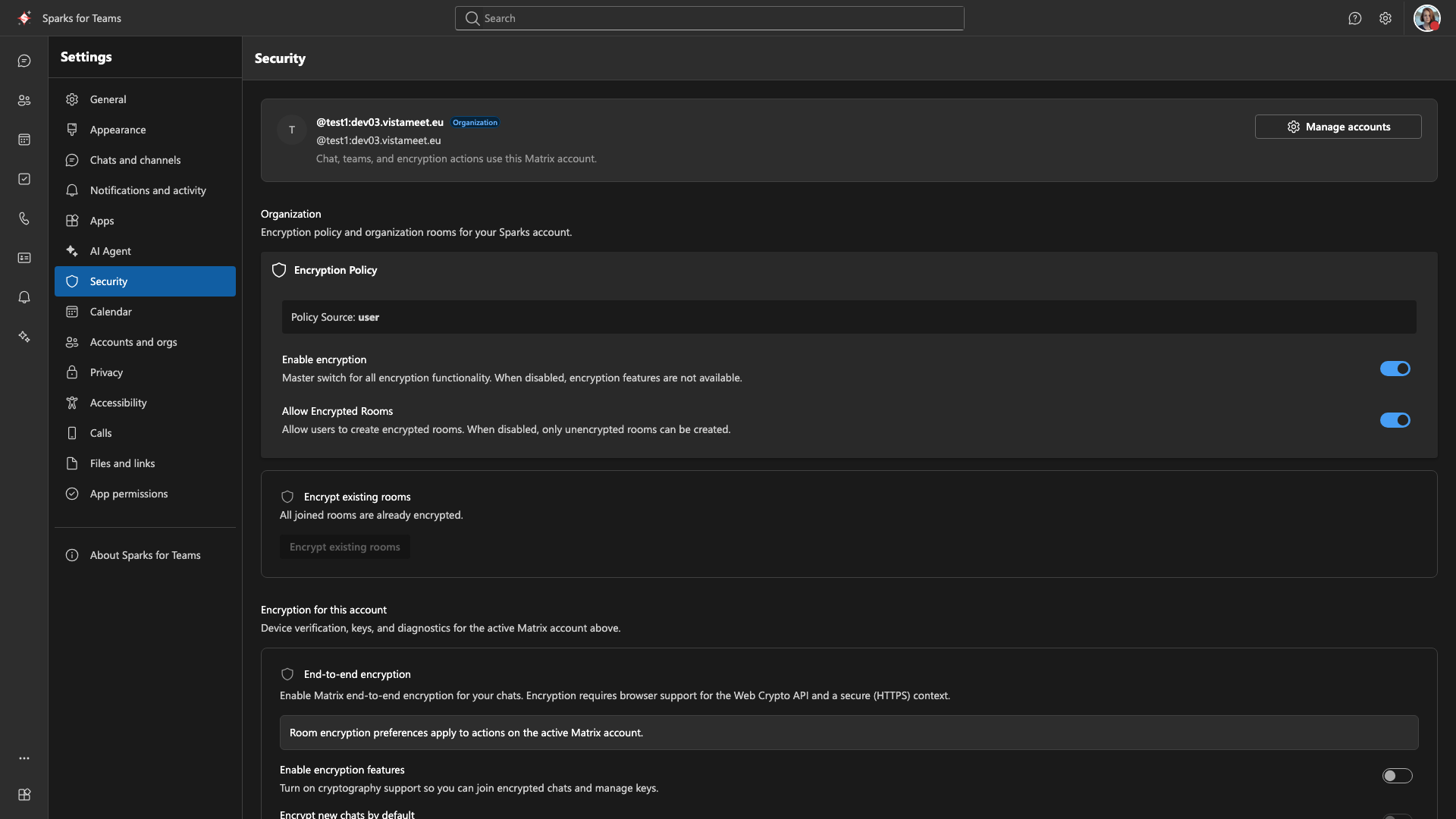
- Open Settings → Security.
- In Device verification & key restore, click Verify this device with Element.
- In Element, accept the incoming verification request.
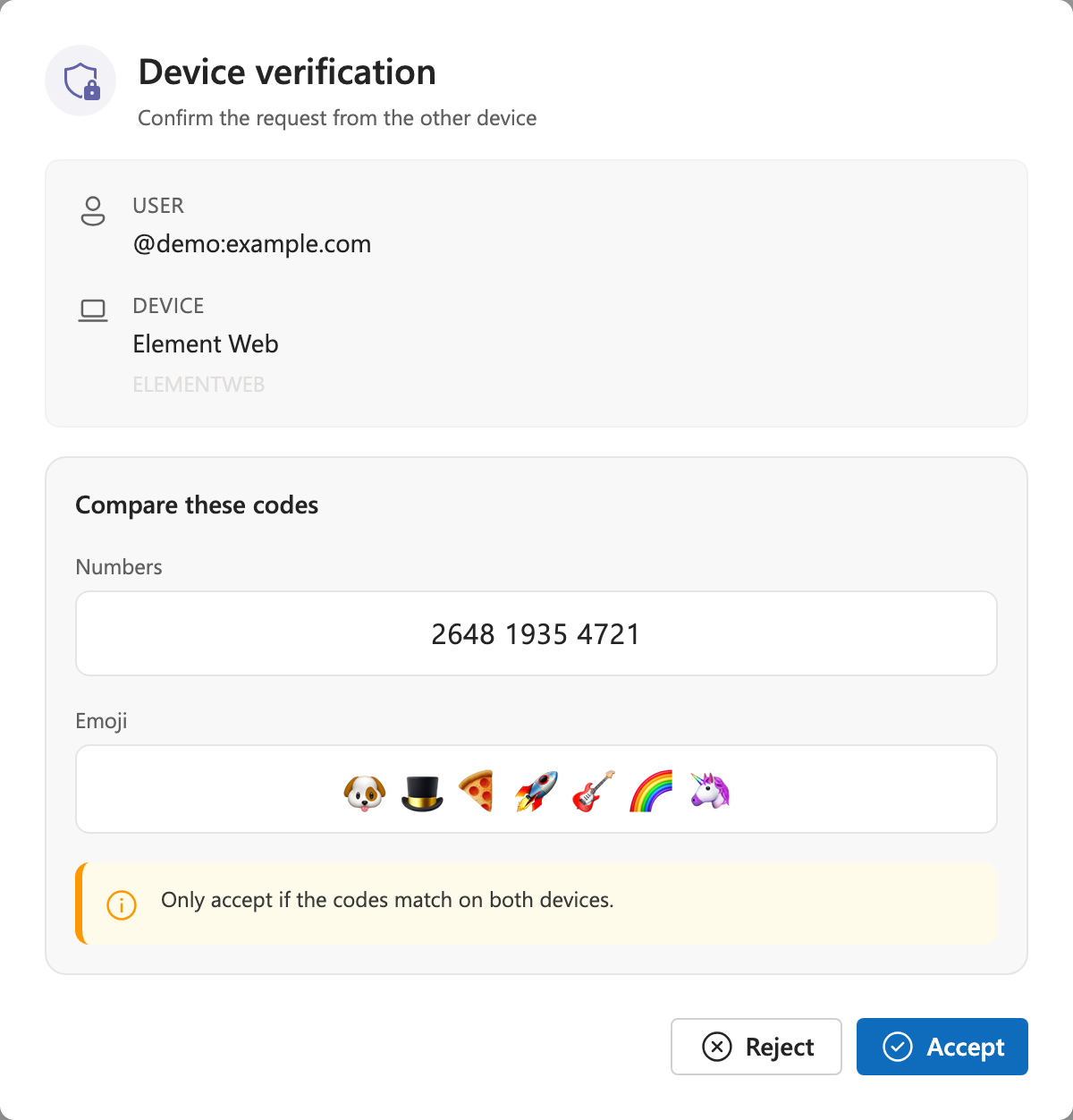
- On both sides, compare the shown numbers and emoji.
- Only if they match: click Accept in Liman and confirm in Element.
📸 Screenshot:
📸 Screenshot:
Option 2 — First-run onboarding
On first login, the Secure your chat wizard may appear:
- Choose Send verification request to my devices (or skip for later).
- Accept in Element and compare codes as above.
- Complete encryption / recovery-key steps in the wizard if prompted.
Option 3 — Start from Element
- In Element under Settings → Sessions (or Security), select the new Liman session for verification.
- Liman shows the Device verification dialog.
- Compare codes → Accept.
Tips
- Only confirm if the codes match on both devices. If they differ, cancel and restart.
- After successful verification, Liman can restore keys from backup so older encrypted messages become readable.
- With the Strict policy, the organization does not store the recovery key on the server; keep the key offline. Details: E2EE.
Quick checklist
- Homeserver URL known and reachable
- Org mode chosen (OIDC or Legacy Synapse) or external account added
- Signed in to Liman and Element with the same Matrix ID
- Device verification (emoji/numbers) completed
- Optional: recovery key saved (especially under Strict policy)