Area: Settings
Path: /settings or via Ctrl+. / Cmd+.
Overview
The Settings area contains all configuration options for Liman. Settings are divided into sections; each section appears as its own tab or block.
Sections Overview
App tabs (order may vary slightly):
| Section | Brief Description |
|---|---|
| General | Language, date, time, numbers, Getting started, device permissions, meeting mini window |
| Appearance | Theme, colors, font, density; Translation may appear here |
| Chat / Chats and channels | Message format, list, Element/Matrix calls; Translation |
| Notifications | Desktop, push, categories, time range, email |
| Apps | Marketplace (placeholder), installed apps |
| AI Assistant | Agent (UI: AI Agent), model from team allowlist, memory |
| Security | Encryption, devices, key backup |
| Calendar settings | First day of week, working hours, new events as Liman online meetings |
| Provider Accounts & Organisations | Accounts & organisations: calendar, contacts, tasks, storage |
| Privacy | Do Not Disturb, priority contacts, E2EE, optional services |
| Accessibility | Live captions, statement, feedback |
| Call settings | Meeting view, ad-hoc transcription, ringtone |
| Files & Links | Office editing (browser/desktop), WebDAV |
| App permissions | Permissions for embedded apps (when any) |
| About Liman | Version, open-source notes |
General
| Setting | Options | Description |
|---|---|---|
| Language | English, German | Application display language |
| Date Format | US (MM/DD/YYYY), European (DD/MM/YYYY) | Date display format |
| Time Format | 12h (AM/PM), 24h | Time display |
| First Day of Week | Monday, Sunday | Start of calendar week |
| Number Format | US, European | Decimal and thousand separators |
Getting started (onboarding)
| Setting | Description |
|---|---|
| Reset onboarding | Show checklist, welcome dialog, intent question, app tour, and empty-area hints again |
| Start app tour | Guided tour of navigation, search, profile |
| Module tours | Optional: restart Calendar, Calls, Planner, or Activity tour |
Details: Getting started & onboarding
Device permissions (desktop app)
Installed app only. Status of camera, microphone, notifications, and screen recording; Allow, Open system settings, Show permission setup again. This section is hidden in the browser.
Meeting (General)
| Setting | Description |
|---|---|
| Ask me to confirm when I leave | Prompt before leaving the meeting |
| Always show pre-join | Choose devices before every join |
| Video info overlay | Resolution/framerate on tiles |
| Mobile meeting bottom bar | Custom control bar on small screens |
| Open mini window when the meeting connects | Floating controls (browser: Chromium document PiP; desktop: always-on-top) |
| Open mini window when app is in the background | Open when Liman goes to the background |
| Close mini window when returning to the meeting | Otherwise the mini window stays open in parallel |
In a meeting, open the mini window from the controls; double-click the video in the mini window to restore the full view. On desktop the mini window can sit above fullscreen apps (e.g. PowerPoint).
Files & Links
For Files tabs with WebDAV/Nextcloud:
| Setting | Description |
|---|---|
| Office editing | Automatic, desktop app (check out/in), or browser editor (Collabora/Eurooffice/Office Online) |
| Preferred desktop editor | Which app opens when checking out |
Details: Editing files (WebDAV)
Appearance
| Setting | Options | Description |
|---|---|---|
| Theme | Light, Dark, System | Color scheme; "System" follows OS |
| Brand Color | Color palette | Accent color for buttons and highlights |
| Font Size | Small, Normal, Large | Base font size |
| Density | Compact, Normal, Comfortable | Spacing and line height |
| Separate Matrix and Microsoft | On/Off | Sidebar: Matrix and Microsoft apps in separate groups |
Chat
| Setting | Options | Description |
|---|---|---|
| Message Format | Rich text, Plain text | Formatting in messages |
| Emoji Skin Tone | Default, 1–5 | Default emoji skin tone |
| Read Receipts | On/Off | Show when messages were read |
| Typing Indicators | On/Off | Show "X is typing…" |
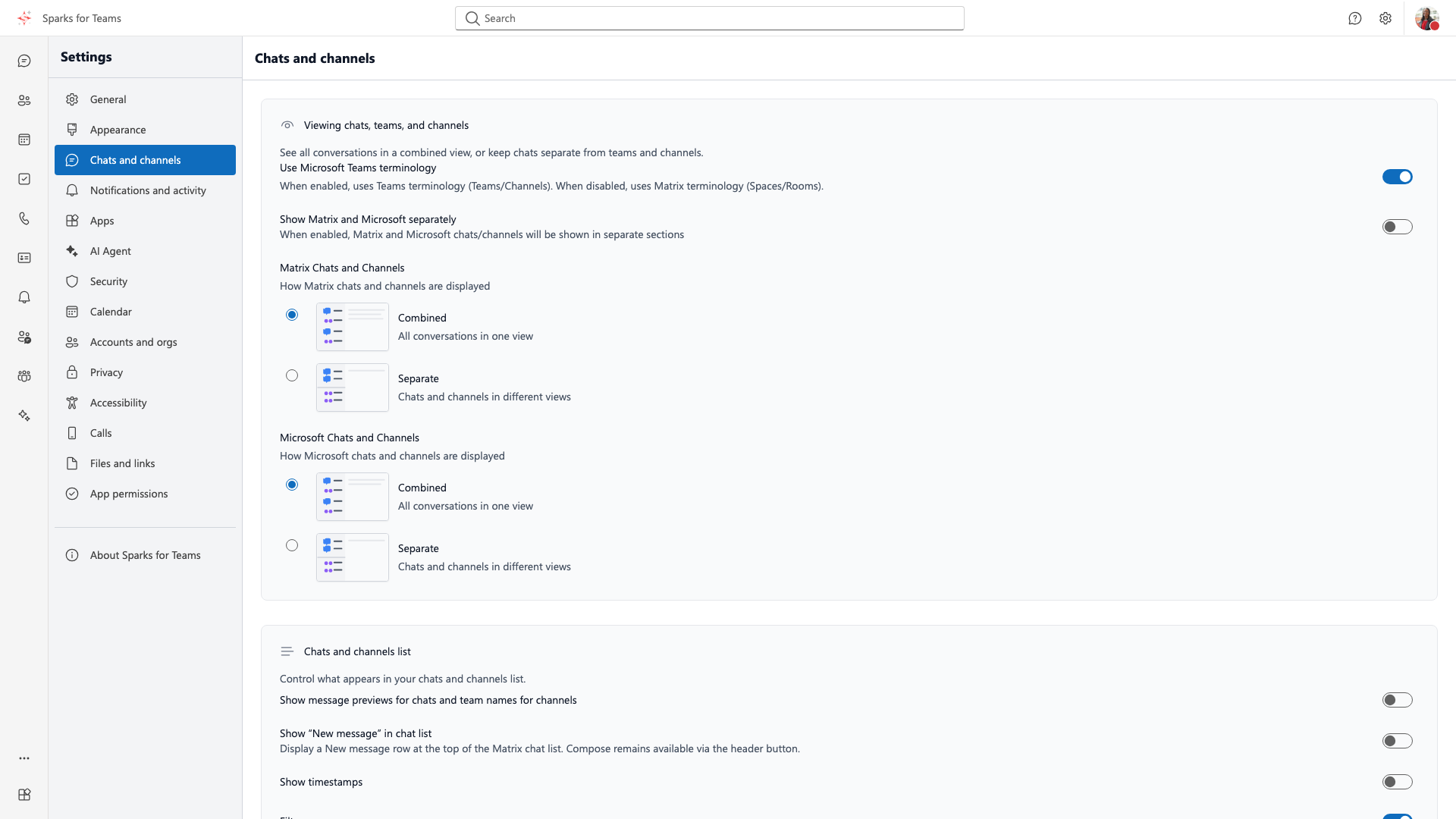
Chat and channel list
| Setting | Options | Description |
|---|---|---|
| Microsoft Teams terminology | On/Off | Use Teams/Channels instead of Spaces/Rooms |
| Message previews | On/Off | Previews in the chat list |
| Show “New message” in chat list | On/Off | Extra row at the top of the Matrix chat list to start a new conversation |
| Timestamps | On/Off | Timestamps in the chat list |
📸 Screenshot:
Element / Matrix native calls (federated callers)
Under Chats and channels you can configure behavior for calls from Element or other Matrix clients (not for Liman-native calls via the chat call button).
| Setting | Options | Description |
|---|---|---|
| Element / Matrix native calls (legacy VoIP) | Reject and suggest Liman · Notify only | Applies to older Matrix calls (m.call.invite): auto-decline with chat hint or desktop notification only (answer in Element) |
| Element Call (MatrixRTC) | Ignore · Decline · Notify only · Ring and answer in Liman | Modern Element Call rings (m.rtc.notification). Ignore (default): no reaction. Decline: protocol decline + optional chat hint. Notify only: desktop alert without decline. Ring and answer in Liman: same call dialog as Liman; join the caller’s LiveKit (interop, basic A/V) |
More detail: Element Call and federation
Translation
Under Appearance or Chats and channels (section Translation, hash #translation):
| Setting | Options | Description |
|---|---|---|
| Target language | English, German | Language to translate messages into |
| Other languages | Ask me · Always translate · Never | Behavior for AI translation (context menu Translate) |
Notifications
How notifications look in Liman (Teams-style)
Messages, @mentions, and meeting reminders appear as in-app toasts (Teams-like cards with Liman icon, sender, and optional actions such as Join meeting).
| Platform / situation | Behavior |
|---|---|
| App in foreground (web, desktop, mobile) | Toast stack at the position you choose in settings (window corner) |
| Desktop app in background (Tauri) | Dedicated overlay window with the same toast UI (not native OS cards for chat/meetings) |
| Web/PWA in background | OS/browser notification (fallback), if permitted |
Incoming Liman calls do not use these toasts; they use the incoming call dialog. While a call is ringing, message/meeting toasts are suppressed.
Technical reference (Vistameet-Teams): docs/KONZEPT_DESKTOP_BENACHRICHTIGUNGEN.md.
Display
| Setting | Options | Description |
|---|---|---|
| Desktop Notifications | On/Off | Notifications for messages and meeting reminders (in-app toasts or OS fallback in background). Liman calls use the call dialog. On the desktop app (Tauri), chat/meeting toasts work without system notification permission (Teams-style in-app + overlay) |
| Background push notifications | On/Off (default: On) | Matrix push when the app is closed or in background (Web Push / mobile FCM). Requires push gateway on the server (Sygnal). Can be disabled server-wide via config.json |
| Message Preview | On/Off | Show message content preview in notifications |
| Show During Calls | On/Off | Show notifications even during active calls |
| Show When Tab Not Visible | On/Off (default: On) | Show notifications when the app is in background or tab is not visible |
| Ring on mobile when Busy or Do not disturb | On/Off | Incoming calls: default On – play ringtone on phone/tablet even when your status is Busy/Do not disturb. Off matches desktop (dialog may still show; no ringtone). |
| Close After | 5, 10, 30 seconds | Auto-close for in-app toasts |
| Position | Bottom right, Top right, Bottom left, Top left | Corner for in-app toasts (foreground) |
| Size | Comfortable, Compact | In-app toast size |
Chats and Channels
Per category you can choose when notifications appear:
| Category | Options | Description |
|---|---|---|
| Chat Messages | Off, Show in banner, Show in Activity and Banner | Direct messages |
| @Mentions | Off, Show in banner, Show in Activity and Banner | Mentions in chats/channels |
| Replies to Followed Threads | Off, Show in banner, Show in Activity and Banner | Replies to threads you follow in Liman (not every thread reply) |
| Reactions | Off, Show in banner, Show in Activity and Banner | Likes and reactions on your messages (desktop banner + optional activity feed) |
| Channel Posts | Off, Show in banner, Show in Activity and Banner | New posts in channels |
- Off: No notification
- Show in banner: Desktop notification (popup) only
- Show in Activity and Banner: Notification + entry in Activity page
Activity Time Range
Under "Activity Time Range" you set how many days back the Activity page and AI Assistant consider events (e.g. 1, 3, 7, 14, 30, 90 days).
Email notifications (calendar & chat)
In the Activity tab (formerly "Notifications") you will find Calendar notifications with optional emails to your account address (default: off). Your operator must configure SMTP on the server.
| Setting | Description |
|---|---|
| Receive calendar invites by email too | In addition to in-app notification: email with ICS attachment for calendar invites |
| Email reminder for open chat invites | One reminder after ~24 hours if a Matrix room invite is still pending |
| Missed chat messages by email | Digest of unread Matrix and MS Teams chats when you were away from Liman (similar to Teams "Missed activity emails") |
| Frequency (when chat email is enabled) | As soon as possible, every 10 minutes, hourly (default), every 8 hours, daily, or off |
Quick reply: When enabled by your operator, the digest email includes Reply links (web page /missed-message-reply) and optionally an Outlook card for inline reply. Matrix replies are sent via an operator bot; MS chats open Liman to reply.
Apps
A marketplace is planned where MS Teams apps can be reused with minimal changes. Developers can find guides at docs.liman.com/developer.
AI Assistant
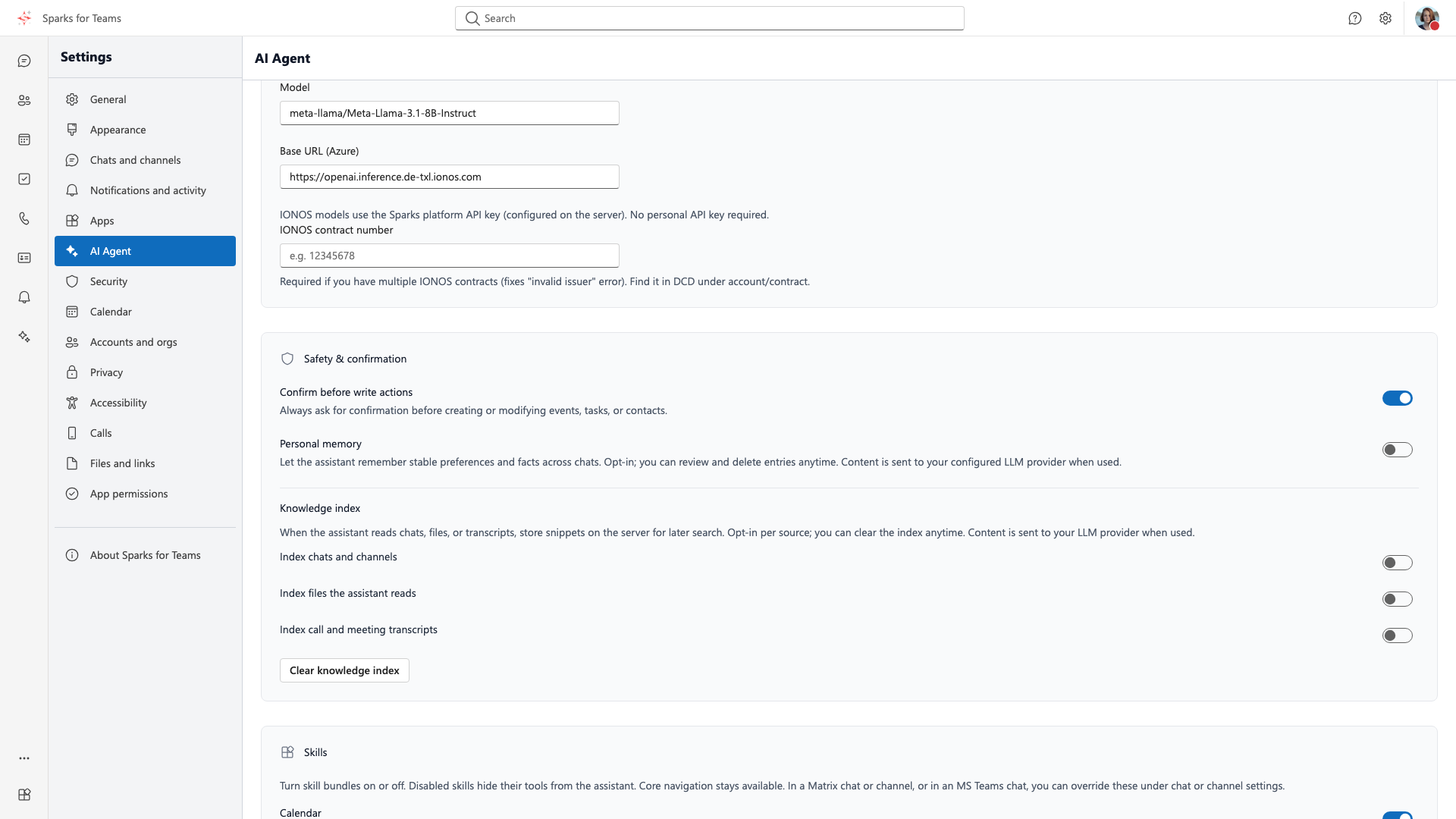
The AI Assistant (/assistant) is an AI-powered chat assistant for calendar, contacts, and tasks.
In settings you can configure:
| Setting | Options | Description |
|---|---|---|
| Enable Assistant | On/Off | Enable or disable the AI assistant |
| Agent Name | Text | Name shown for the assistant in chat |
| Team AI models | Link (team admin) | Models and org keys under Account → Team → AI models |
| Model | Organization allowlist | Only models from the team list; a single entry is display-only |
| Response Language | Follow UI, Fixed | Language of responses (UI language or fixed) |
| Confirm Write Actions | On/Off | Confirm before creating events or tasks |
| Personal memory | On/Off + list | Opt-in: store stable facts/preferences; view, create, delete entries |
| Skills | On/Off per bundle | Hide tool bundles from the assistant; override per Matrix channel in channel settings |
📸 Screenshot:
Platform AI vs. org BYOK
| Mode | Billing / quota |
|---|---|
| Platform models (IONOS, OVH) | Usage counts against your organization's monthly AI token quota |
| Org BYOK (third-party, key from the team admin) | Usage billed by the provider — no Liman platform quota |
Members do not store their own API keys. When platform quota is exhausted, Liman shows a recovery dialog (buy prepaid pack, configure team AI models for team admins, contact team admin). Admins see usage and quota under Account → Team → AI usage.
Affected features include: AI Assistant, meeting transcript summary, and translation (when platform credentials are active).
Privacy
All privacy options with details: Privacy Help
| Setting | Description |
|---|---|
| Do Not Disturb | Who can reach you when "Do Not Disturb" is on? |
| Manage Priority Contacts | Priority contacts receive notifications even when Do Not Disturb |
| Manage Blocked Contacts | Block/unblock contacts |
| Set Do Not Disturb when screen sharing | Auto Do Not Disturb when sharing screen |
| Block calls without caller ID | Block unknown callers |
| Surveys | Participate in polls in chats/channels and the short post-meeting satisfaction question (sample; at most once per day) |
| Advanced Diagnostic Data | Store additional debug data |
| Identify me in attendance reports | Name in meeting attendance reports |
| End-to-End Encrypted Calls | E2EE for 1:1 calls (both must enable) |
| Optional Connected Experiences | Giphy, URL preview, etc. |
| Keyboard shortcut to unmute | Option+Space / Alt+Space in meeting |
| Presence (server) | With server aggregator only: calendar/MS import, external sharing; manual status overrides calendar Busy – see Presence and status |
Provider Accounts & Organisations
Connect external services here. See Data Backends for details.
| Category | Providers | Note |
|---|---|---|
| Calendar | Microsoft, Nextcloud (CalDAV), Open-Xchange | Events merged |
| Calendly | Calendly (OAuth / PAT) | Bookings → Liman calendar, optional busy sync – see Calendly integration |
| Booking page | Liman (native) | Public /book/… page – see Liman booking pages |
| Contacts | Microsoft, Nextcloud (CardDAV), Open-Xchange | Contacts merged |
| Tasks | Microsoft Planner, Nextcloud, Open-Xchange | Tasks merged |
| Storage | Microsoft OneDrive, WebDAV | File upload/access |
Default Provider: When multiple accounts are connected, set a default; new entries are created there by default.
Calendar settings
Tab Calendar (/settings?tab=calendar):
| Setting | Description |
|---|---|
| First day of week | Start of the calendar week |
| Working hours | Start/end and working days (for planning/display) |
| New appointments as Liman online meetings | Create new events with a Liman meeting by default |
Call settings
Tab Calls (/settings?tab=calls), also via the gear on the Calls page:
| Setting | Description |
|---|---|
| Auto-open meeting view | Open the meeting UI after accept/join |
| Ad-hoc transcription | Defaults for saving/sharing protocol and transcript on ad-hoc calls |
| Ringtone | Choose ringtone and preview |
| Reset stuck call | Clear a stuck call state |
App permissions
Tab App permissions: permissions for embedded apps/widgets. Empty state when none are installed.
About Liman
Tab About Liman: version information and open-source / license notes.
Security
If your organization has not enabled Matrix E2EE (default for hosted Liman Matrix; Account → Team → Security policies), encryption options here are hidden; see End-to-end encryption. Encryption is typically on when using an existing Synapse/Tuwunel server.
| Setting | Description |
|---|---|
| Encryption Status | Matrix E2EE status (auto/manual) |
| Device Management | View all devices, sign out devices |
| Key Backup | Create backup, restore, view recovery key |
| Cross-Signing | Device verification status |
| Profile | Quick access to user profile |
Verify this device with Element and homeserver setup: Connect your Matrix server.
Accessibility
Path: Settings → Accessibility tab · in-app statement: /accessibility
Full help page: Accessibility.
| Setting | Description |
|---|---|
| Identify me in live captions | Show your name on your caption lines or use a neutral “Speaker” label — live overlay and transcript |
| Always show subtitles | Show live captions when the meeting starts, when captions are available |
| Accessibility statement | Link to the public statement (WCAG, EN 301 549, EAA) |
| Feedback | Form to report barriers (email to support) |
Starter/Free plan: Live transcription is a short demo only (typically the first 10 minutes after connecting); the settings above apply only while captions are running. On paid plans they apply whenever captions are available. The current caption line may still change while someone is speaking; only finalized lines are stored — Meeting roles.
Readability and contrast: Appearance; keyboard: Keyboard Shortcuts, the “Skip to main content” link, and Alt+arrow to reorder sidebar apps or Planner cards (see Accessibility – Keyboard).
Further accessibility notes
Readability and control are also tied to Appearance, Notifications, and Privacy (meeting unmute shortcut). OS screen readers and magnifiers apply to the whole app. See Accessibility – help page and User Manual – Accessibility.
Keyboard Shortcuts
Not a separate settings tab: under General, open the Keyboard shortcuts dialog (view, optionally customize).
Key Shortcuts:
- Ctrl+K / Cmd+K: Search / command palette
- Ctrl+. / Cmd+.: Settings
- Ctrl+Shift+M / Cmd+Shift+M: Focus message input
Account / Accounts
Connected services and sign-out live under the Accounts & organisations tab (Provider Accounts & Organisations). Profile and out-of-office are also available from the top toolbar or the Account web area.