Dialog: Join Meeting
How to Open
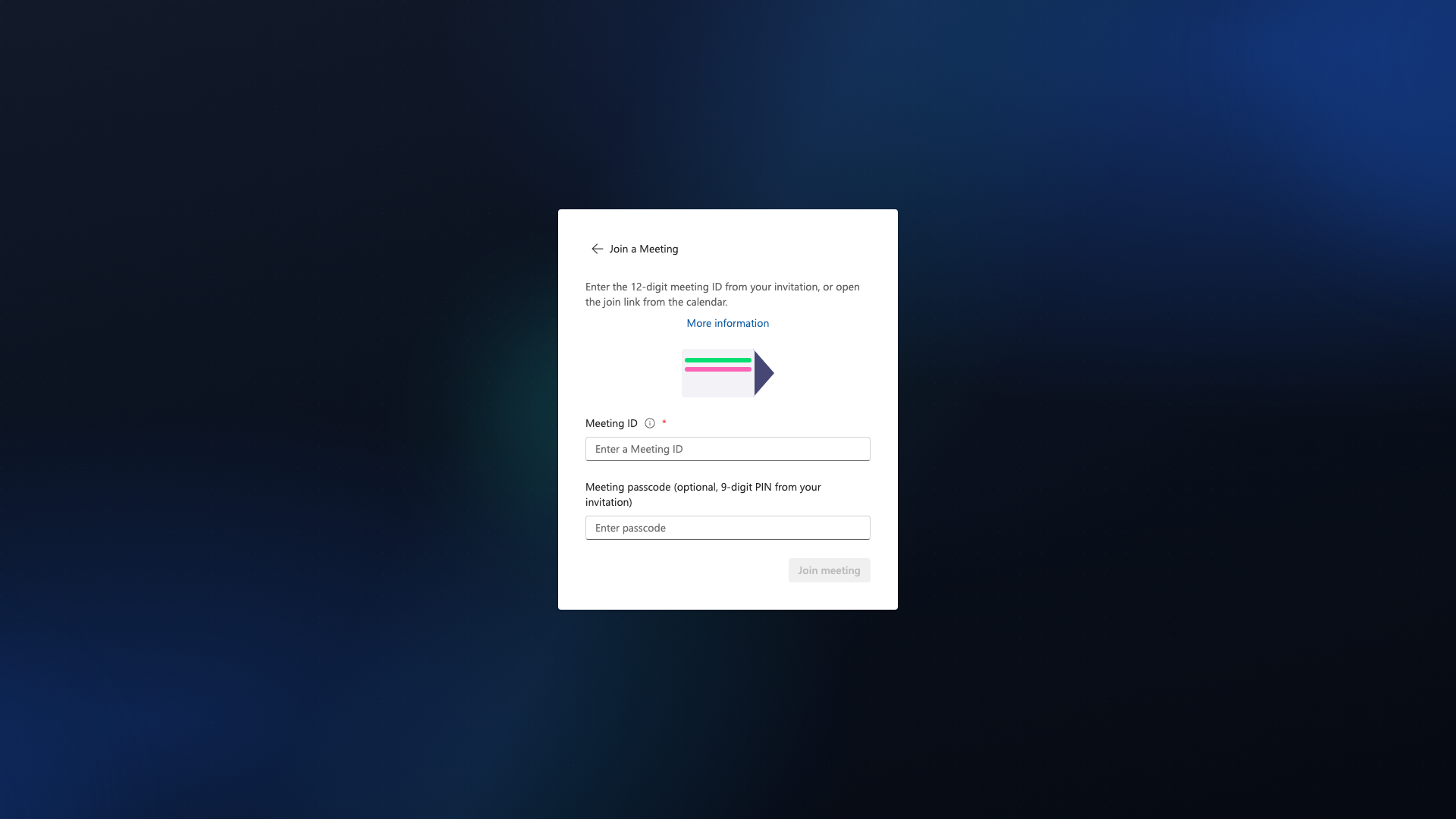
- Via meeting link (e.g. from calendar, email, chat)
- In Calls: "Join Meeting" → enter link or meeting code
- Deep link e.g.
sparks://meet/...(desktop app)
Before pre-join
Depending on event options:
- Meeting password: enter before the pre-join page
- Webinar: registration / approval / status — see Webinar registration
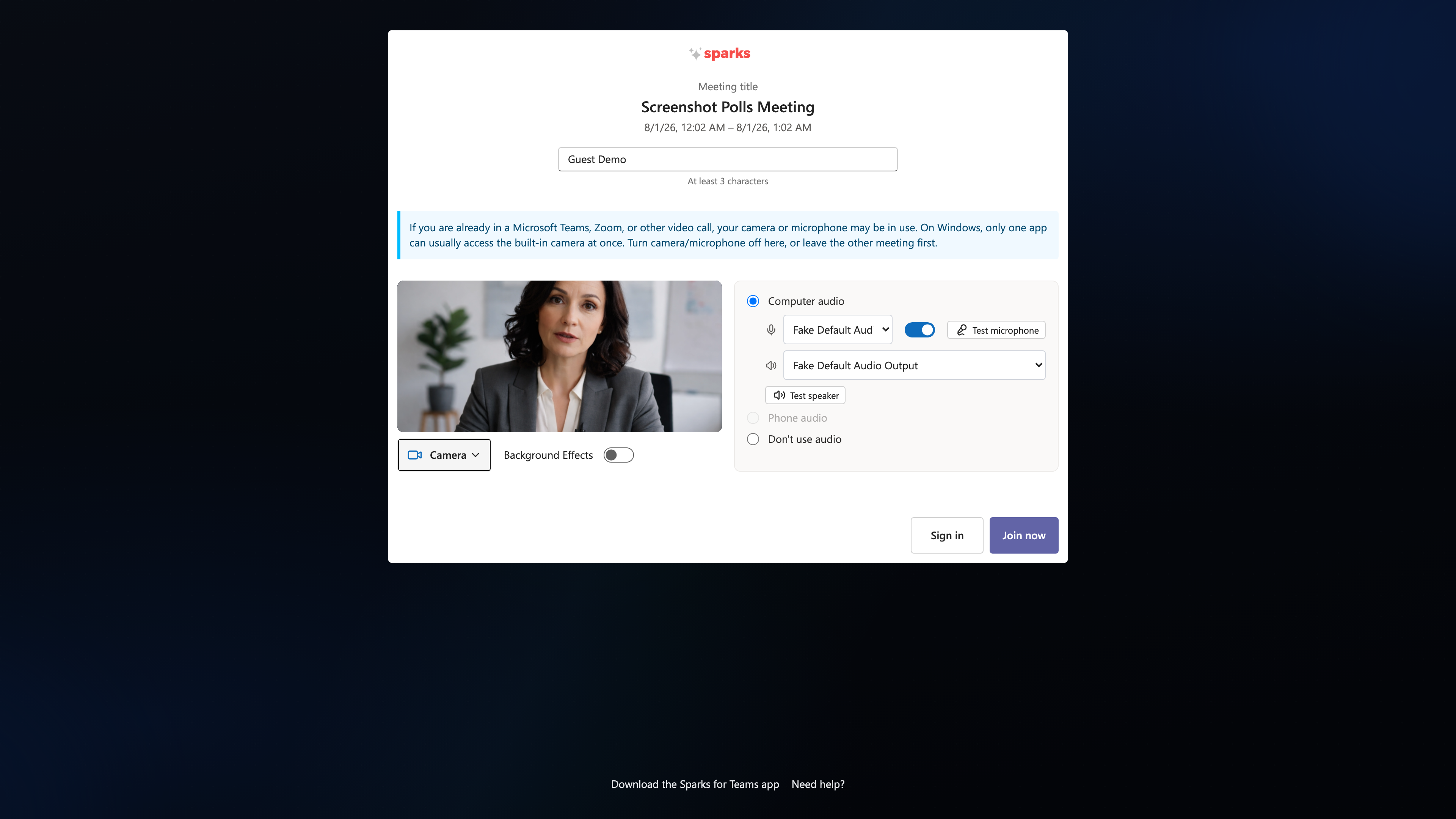
- Host “Meet now”: pre-join with an editable meeting title
Pre-Join (Before Joining)
| Option | Description |
|---|---|
| Camera | Preview, on/off; select device |
| Microphone | Mute; select device |
| Speaker | Output device |
| Name | Display name |
| Background effects | Blur with strength, virtual image |
Background Effects
- Blur with adjustable strength
- Virtual image as background
Parallel call (Teams, Zoom)
If you are simultaneously in Microsoft Teams, Zoom, or another video call, camera or microphone may be in use (especially on Windows). Liman shows a note before joining; if needed, join without camera and microphone.
→ Details: Parallel meeting apps
Guest join and waiting room (lobby)
If you join without a Liman account via a meeting link (guest):
- Pre-Join with name, camera/mic, and optional background effects
- When lobby is enabled in event options: first Enter waiting room — you see “You're in the waiting room…”
- A moderator admits you when the meeting starts or when you are approved
- If the meeting is not started or you are not admitted, a notice appears — contact the organizer
Guests can use background effects like signed-in users (pre-join, waiting room, in meeting).
After leaving (goodbye screen)
- Heading “Thank you for joining!”
- Subtitle by reason (you left / moderator ended / removed)
- “See you soon!”
- Button “Back to app”; desktop often uses a countdown to the main app
- Occasionally a short satisfaction question (1–5, optional comment). Not every leave (sample, at most once per day). Turn off: Settings → Privacy → Surveys.
After Joining
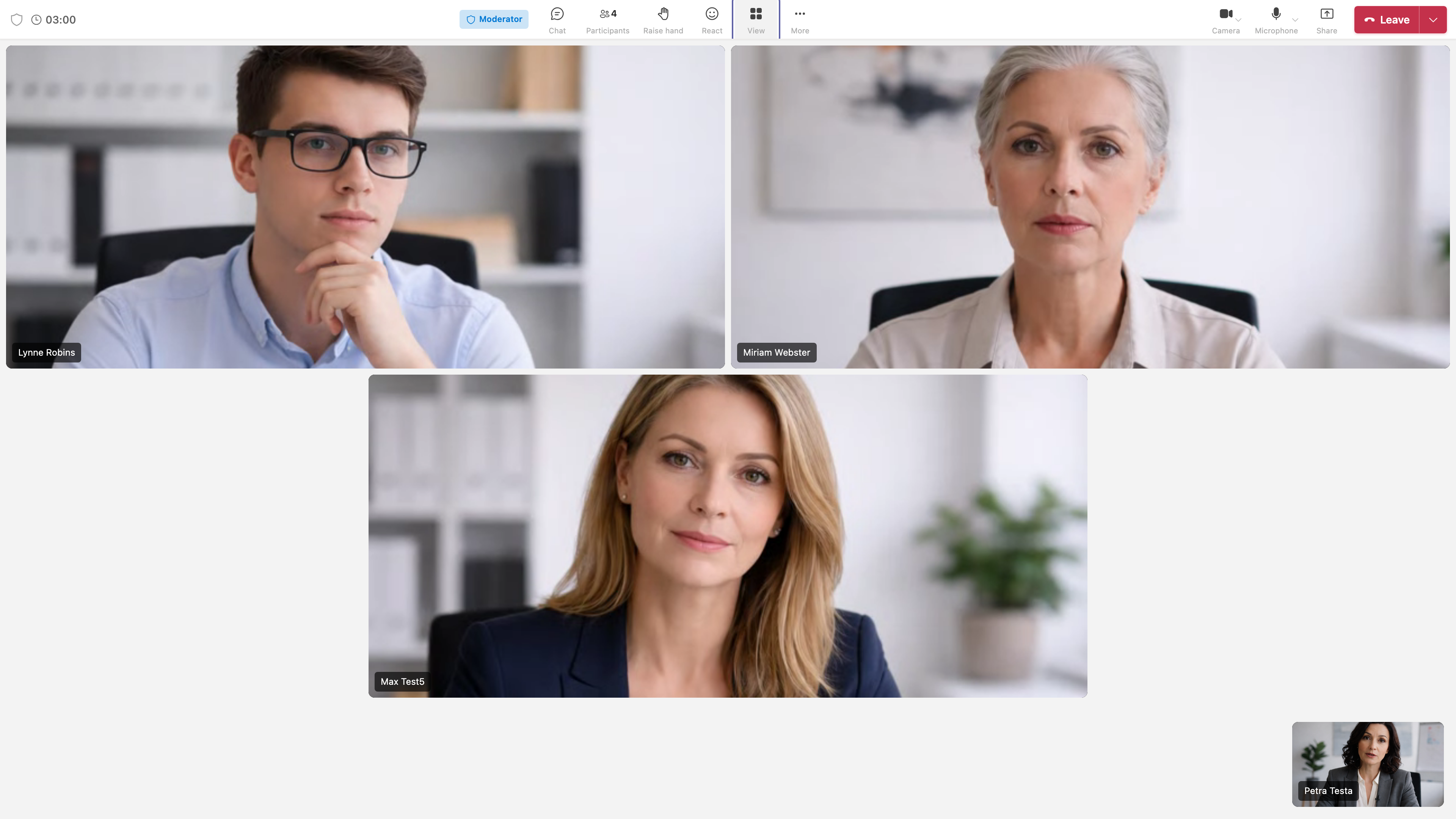
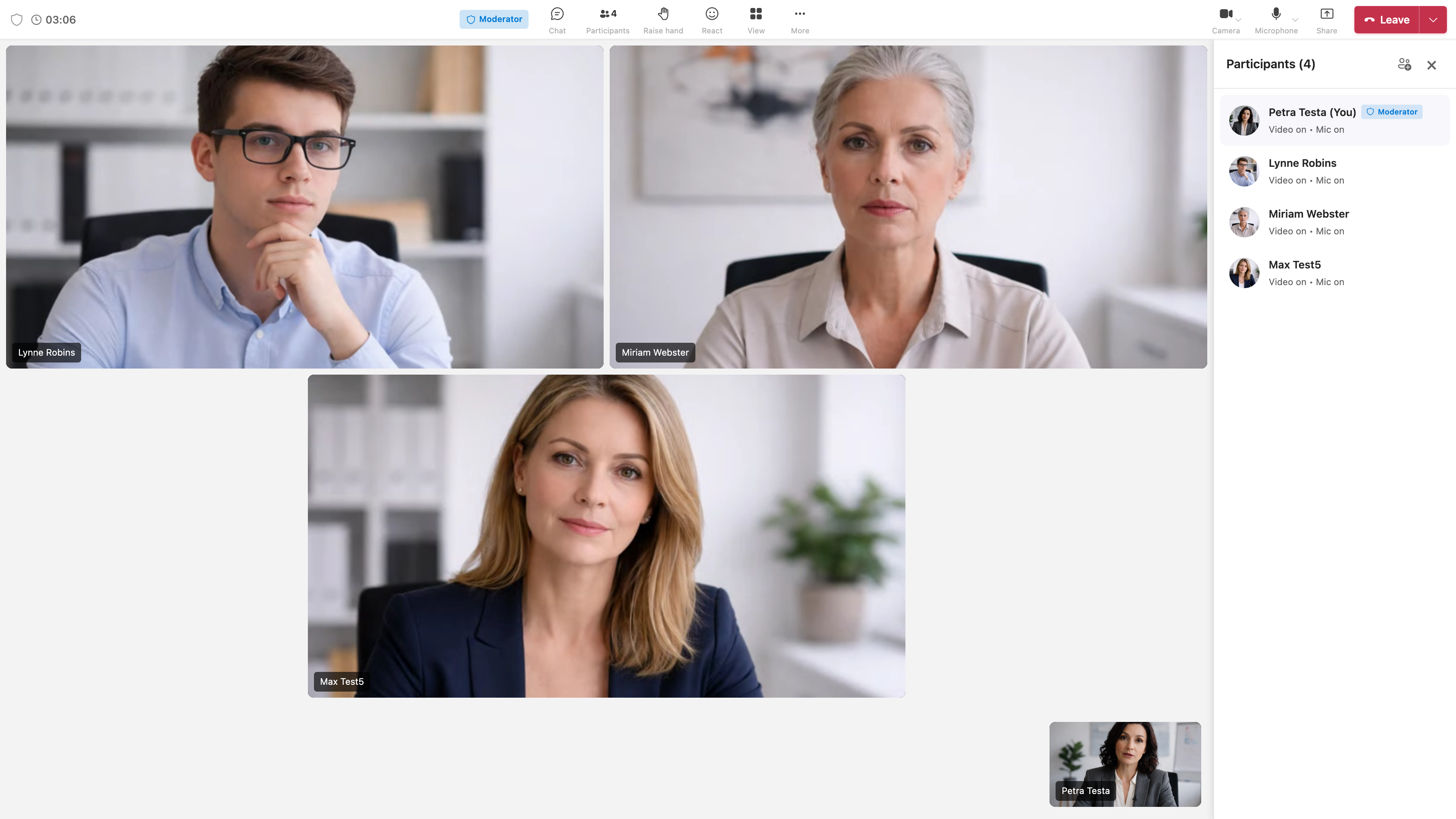
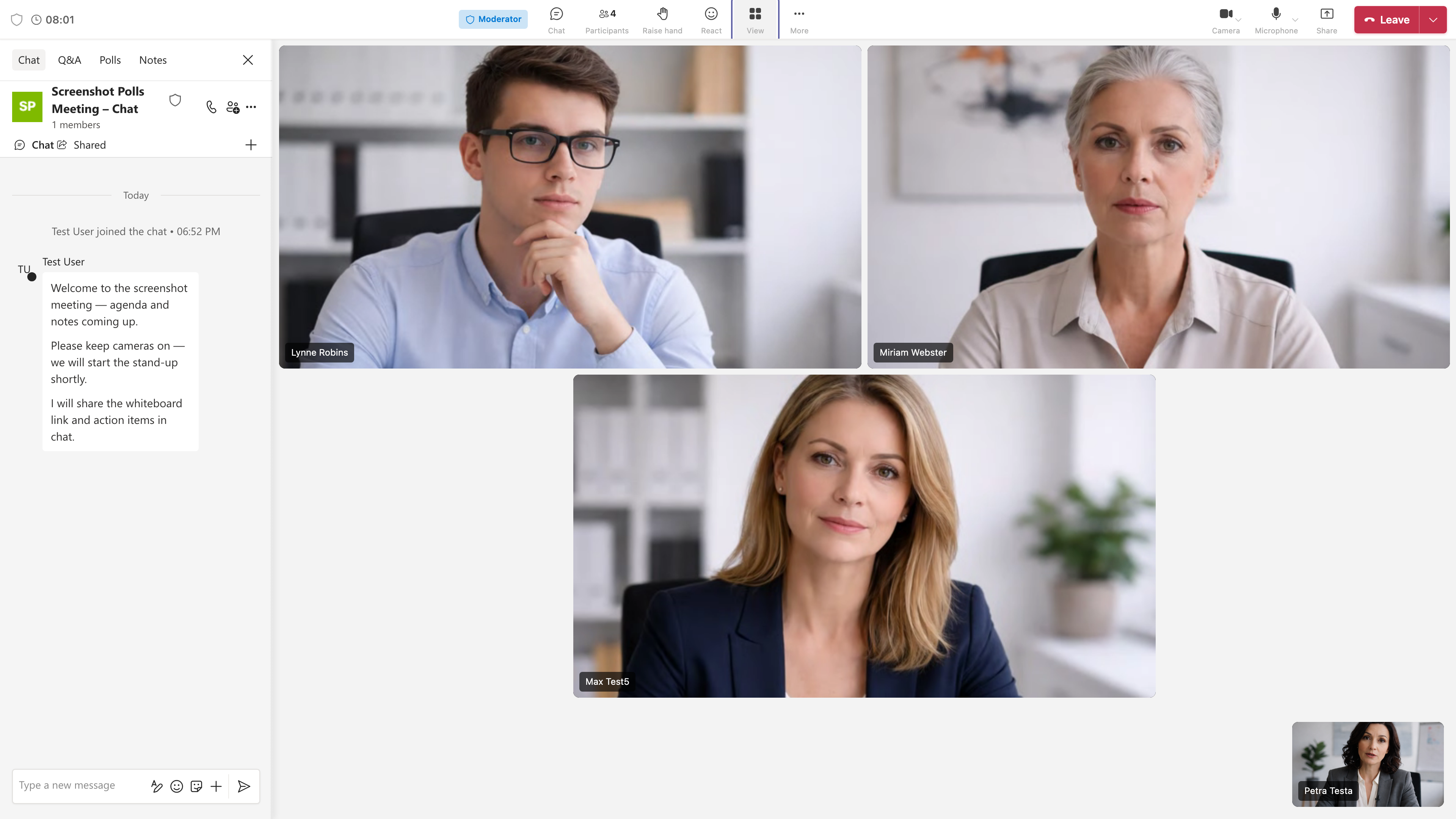
- Meeting toolbar: Chat, Q&A, polls, participants, whiteboard, view switch
- Controls: Camera, microphone, screen share, reactions
- Mini window: floating controls (camera/mic/share/leave) above other windows — Chromium browser or desktop app. Settings under Settings → General → Meeting.
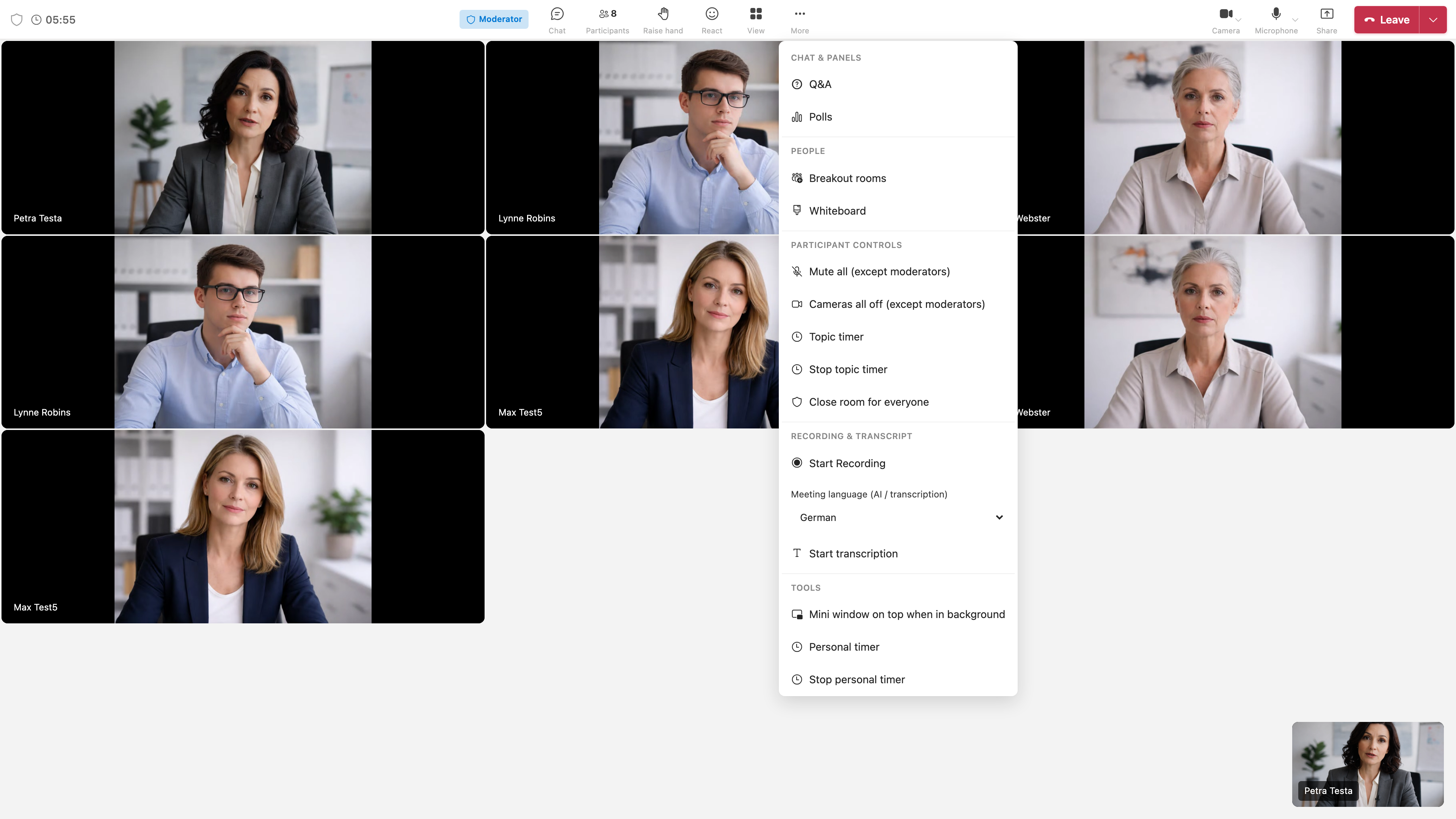
- Moderators: Breakout rooms, recording, timer, participant actions (pin, spotlight, remove)
Pointer and markings on screen share
When someone is sharing, moderators can turn Pointer on:
- Click the share: laser pointer with name for everyone
- Drag: short marking (fades after a few seconds)
- Clear markings: remove all strokes
- The presenter also sees clicks in the desktop app as an overlay on the real screen (helpful in fullscreen presentations). This is not remote control of the PC.
📸 Meeting room:
📸 Control bar:

📸 More menu:
📸 Participants list:
📸 Meeting chat:
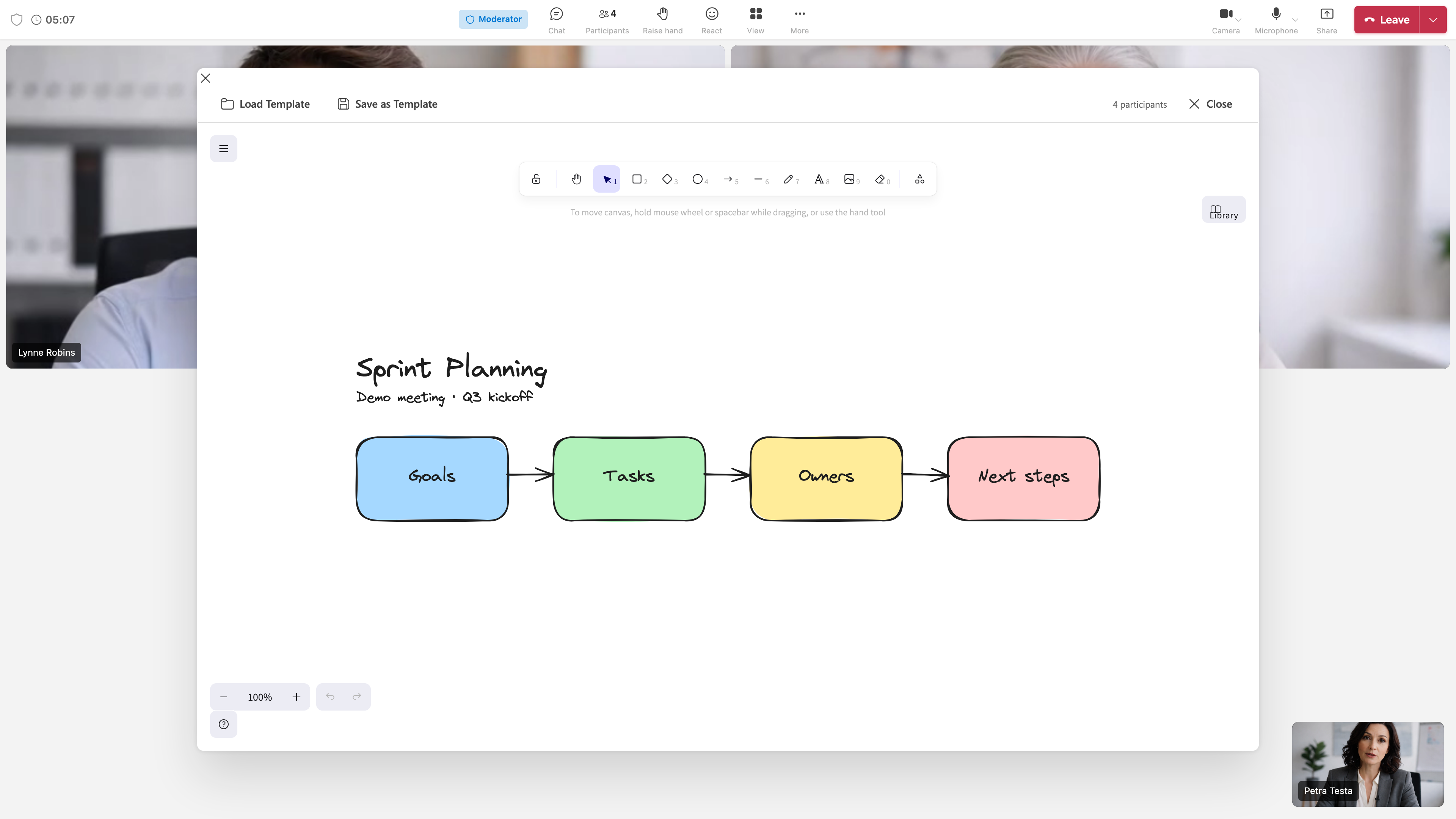
📸 Whiteboard in meeting:
Meeting Types
- 1:1 call: Direct from contact/phone book; no pre-join dialog mandatory
- Group meeting: Via link or calendar; pre-join usual
- Room meeting: Linked to Matrix room; chat, Q&A, polls available
Keyboard Shortcut in Meeting
- Option+Space / Alt+Space: Temporarily unmute (push-to-talk) when enabled in Privacy settings
📸 Pre-Join page:
📸 Screenshot:
Roles in Meeting
What moderators and participants can do: Meeting Roles: Moderator and Participant