Liman booking pages (public scheduling)
Status: August 2026
Audience: Users who want a public booking link without Calendly.
Language / Sprache: Deutsch
What is this?
Liman booking pages publish a page at /book/… where guests can pick a free slot and book a meeting with you without a Liman account.
The booking lands in the Liman calendar. Optionally a Liman online meeting (join link) is created. Guests get email confirmation (with ICS) and a manage link to reschedule or cancel.
This is the native booking product in Liman — alongside the Calendly integration, not a replacement for Calendly CRM funnels.
Overview
| Topic | Details |
|---|---|
| Where to configure | Settings → Accounts → Booking page |
| Public URL | /book/{your-slug} (e.g. /book/jane-doe) |
| Guest flow | Event type → slot → name/email → confirm |
| Manage | /book/manage/{token} — reschedule or cancel |
| Calendar | Event in Liman Postgres calendar (bookingSource: sparks_booking) |
| Protection | Rate limits; optional ALTCHA (self-hosted, privacy-friendly) |
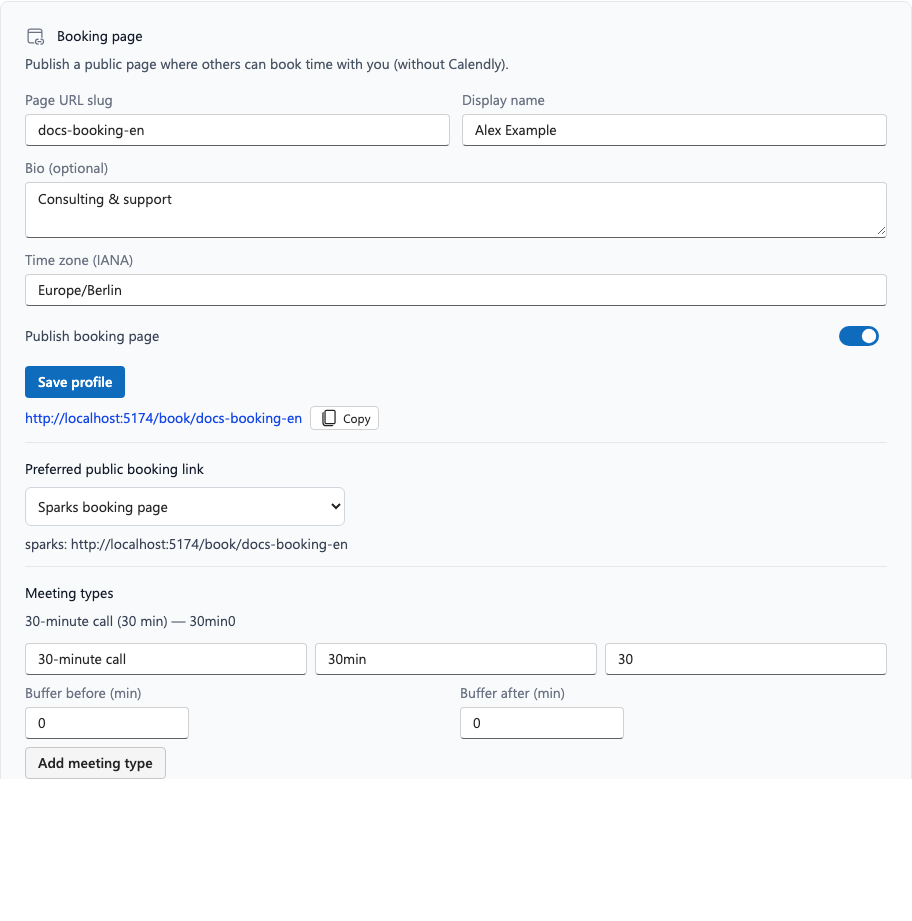
📸 Settings → Booking page:
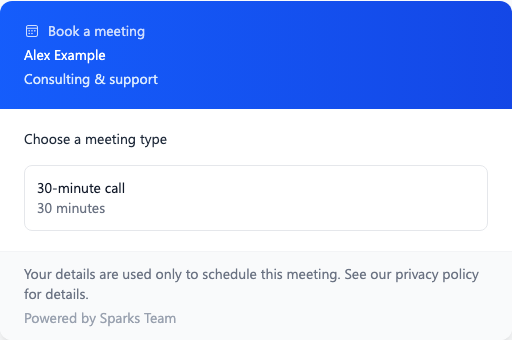
📸 Public booking page:
Prerequisites
- Liman account with an active Liman calendar (database calendar)
- Feature not disabled (
SPARKS_BOOKINGat the operator; default: on) - For online meetings: appointment/meeting backend reachable (same as other Liman online events)
- Optional CAPTCHA: operator sets
SPARKS_BOOKING_ALTCHA_HMAC_SECRET(self-hosted ALTCHA, not Google/Cloudflare)
Set up your booking page
- Open Settings (Ctrl+. / Cmd+.) → Accounts tab.
- Scroll to Booking page (above Calendly, if present).
- Enter:
- URL slug (e.g.
jane-doe, lowercase, hyphens allowed) - Display name and optional bio
- Time zone (IANA, e.g.
Europe/Berlin)
- URL slug (e.g.
- Save profile.
- Create at least one event type (title, slug, duration; optional buffers before/after).
- Turn on Publish booking page and save again.
- Copy the public link shown.
On first publish, typical working hours Mon–Fri 09:00–17:00 are applied if no rules exist yet.
Closed days
Under Closed days, mark individual dates (e.g. holidays). No public slots appear on those days.
Preferred booking link
If you also use Calendly, choose under Preferred public booking link:
| Option | Meaning |
|---|---|
| Liman booking page | Only the Liman /book/ link |
| Calendly | Only your Calendly scheduling link (if connected) |
| Both (Liman first) | Both links, Liman first |
| None | No share links |
For guests: book a meeting
- Open
/book/{slug}. - Choose an event type.
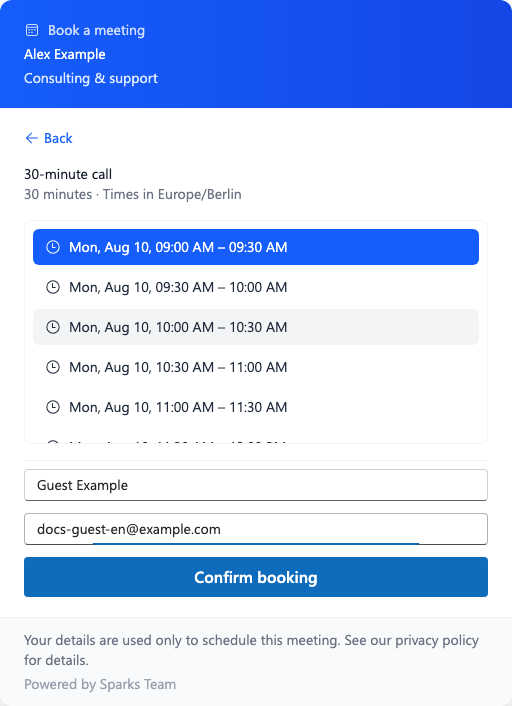
- Pick a free slot (shown in your local time zone).
- Enter name and email.
- Complete the ALTCHA check if required (operator policy or after suspicious failed attempts).
- Confirm booking.
You see the join link (if online meeting) and Manage booking.
📸 Slot and form:
Manage a booking (guest)
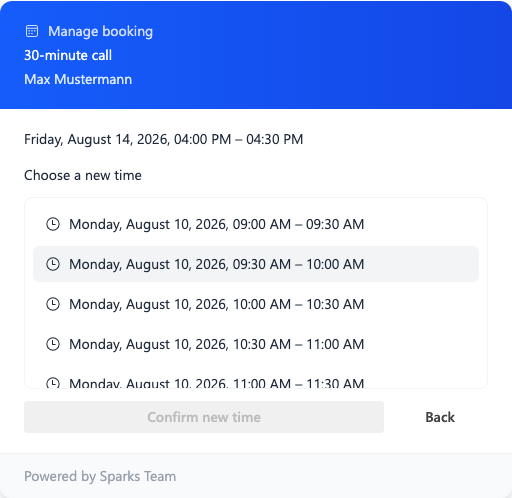
Via /book/manage/{token} (from confirmation email or success page):
- Reschedule — pick a new slot (limited; default max 3 times)
- Cancel — removes the event
Deadlines follow the event type minimum notice (e.g. 60 minutes before start).
📸 Manage page:
Privacy & CAPTCHA
- Public booking data (name, email, slot) is used to schedule the meeting.
- ALTCHA is the intended check: self-hosted, proof-of-work, no third-party tracking (no reCAPTCHA/hCaptcha/Turnstile handoff).
- Without a configured ALTCHA secret, public API rate limits still apply.
Tips & troubleshooting
| Symptom | Likely cause |
|---|---|
| “Booking page” section missing | Feature disabled or calendar/API unavailable |
/book/… shows “unavailable” | Profile not published or wrong slug |
| No slots | No working hours, fully busy, closed day, or minimum notice too high |
| No meeting link | Event type not Liman Online mode, or meeting backend unreachable |
| CAPTCHA appears suddenly | Many failed bookings from your IP; complete the check |
| Reschedule fails | Max reschedules reached or too close to start |
Related topics
- Calendly integration — external booking front, shared calendar core
- Settings – provider accounts
- Area: Calendar
- Data backends